Pet Workshop 101
This is a complete walkthrough of Pet Workshop, a visual hexing tool for Petz. Herein is explained all the tools and features of Pet Workshop, or PWS, in detail. I recommend becoming familiar with this before reading my other PWS tutorials. :D
I've opened the dane file just as an example, this tutorial applies to all breeds and species of petz.
Make sure to backup your breedfiles before working with them.
Table of Shortcuts
Getting Started
Ballz Tools
- Balls: Move Ball
- Balls: Ball Color
- Balls: Ball Size
- Balls: Ball Texture
- Balls: Outline Fuzziness
- Balls: Outline Color
- Balls: Outline Thickness
- Balls: Delete Ball
Linez Tools
Paintball Tools
- Paintballs: Select Ball to Edit
- Paintballs: Add Paintball
- Paintballs: Delete Paintball
- Paintballs: Clear Paintballs
- Paintballs: Add Tattoo
- Paintballs: Save Tattoo
Opening A Breedfile
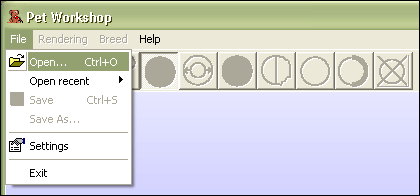
Open up Pet Workshop (or "PWS") and select File > Open...
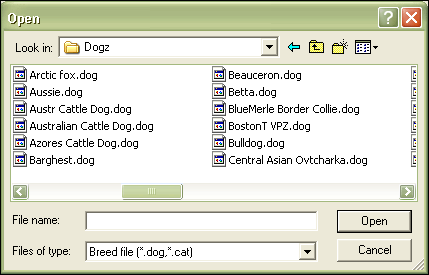
Navigate to your Resource\Dogz (or Catz) folder and select your breedfile.
Apply Changes to Base Data
For most hexed files made for trading, you want to apply all of your changes to the "base data" of the breedfile. Working in [Ballz Info] instead of the [Overrides] sections allows for easier touch-ups in LNZPro later, since everything is clearly labeled for you.
Look at the tabs on the bottom of PWS and pick "Apply changes to," then pick "Base Data" as shown.
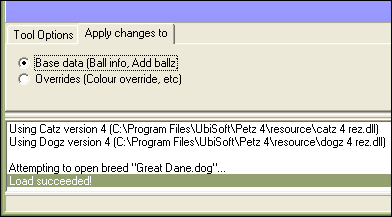
Please note, you must do this every time you open a breed in PWS! Even if you've saved the file, you must check this option again when you re-open PWS.
Deleting Variations in PWS
A variation is what makes a breedfile come in different colors, like how labs can be yellow, chocolate, or black. When hexing a typical file for trading, you'll only want one "variation" to come out of the AC. The Collapse All Variations feature of PW is used to delete all variations in the file except the one you're currently looking at.
You can also do this quite easily in LNZPro, but this is a nice shortcut if you do it correctly. It helps to look at the file in LNZPro first, however, and note what coat color is used in [Ballz Info]. This is the "default variation," because all other variations are added in the [Color Info Override] section of the breedfile (along with the [Outline Color Override] and [Paint Ballz] sections, among others).
Generally you don't want to work in any [Override] sections, because they aren't labeled nicely and it's annoying lol. That's why we checked "Apply changes to Base Data" earlier.
So take a peek in LNZPro and note what ball color (first number) is used in [Ballz Info]. You'll want to keep reopening (just use File > Open Recent > [breed]) your chosen breed until you're looking at the variation that matches that coat color. For example, the red dane without the snout patch (if some variations of the breedfile have spots and others don't, you usually want the spotless one) is the "default variation" for the great dane.
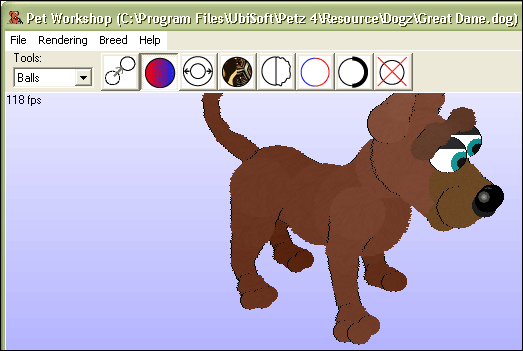
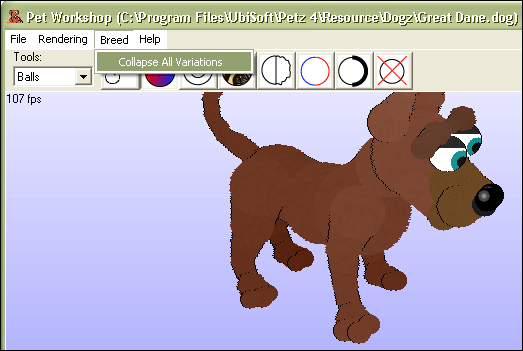
Select Breed > Collapse All Variations. A warning will pop up asking if you're sure, pick Yes.
Select File > Save and you've deleted your variations! Now only the dog you're working on will come out of the AC.
PWS has 3 set of tools: Balls, Lines, and Paintballs. Depending on which set you pick from the drop down menu, the icons to the right of that menu will change. At the bottom of PWS is the "Tool Options" tab, which lets you set different variables of the currently selected tool.
I'm going to walk you through all of the PWS tools and how to use them.
Balls: Move Ball
The first tool in the Balls set, and allows you to grab an individual ball and move it around. This is done mathematically by changing the XYZ coordinates of the selected ball.
When applied to addballz, i.e. ball numbers over 66, the XYZ coordinate changes are made in [Add Ball]. PWS will alter the selected addball's coordinates there, in the addball's code line.
When applied to ballz which are under [Ballz Info], i.e. ball numbers 0-66, the XYZ coordinate changes are made under [Move]. PWS will either add the ball you are moving under the [Move] section if it doesn't already exist there, or alter the ball's existing line.
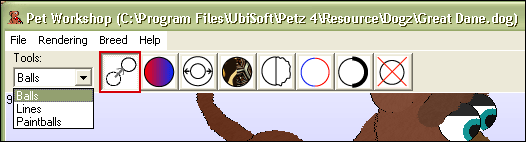
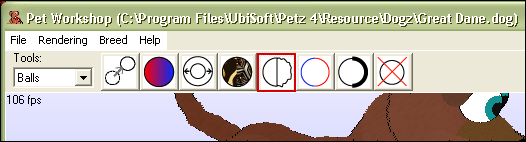
Remember you need to actually click on the Move Ball icon, because PWS defaults to Ball Color. The top of PWS should look like this. I'm picking the "Balls" tool set, and I've highlighted the tool we're working with in red.
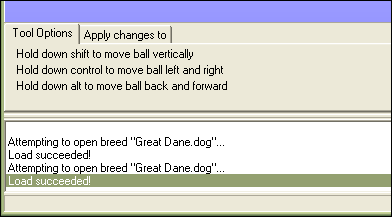
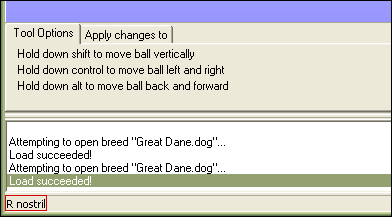
The bottom of PWS has the "Tool Options" tab, which in this case gives you instructions on how to move the balls around.
If you hover over a ball, PWS will also tell you what ball you're selecting on the very bottom. This is very useful for little addballz, or ballz that are hidden by other ones. I highlighted this in red, the right nostril ball for example.
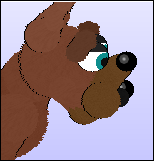
You use this tool just as PWS tells you. Click and hold on a ball, hold down the Shift key on your keyboard at the same time, and drag the ball up and down. You can only move up and down while holding Shift.
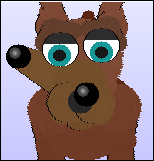
Click and hold on a ball, hold down the Ctrl key on your keyboard as well, and drag the ball left and right. Again, you can only move left and right while holding Ctrl.
Click and hold on a ball, hold down the Alt key on your keyboard at the same time, and drag the ball backwards and forwards. You can only move back and forth while holding Alt, like before.
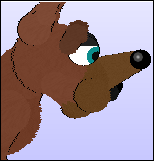
If you're following along, use what you just learned to move the nostril (or whatever ball you moved) back to it's original position. Remember there is no Edit > Undo in PWS, so you have to move things back yourself! It's good to double check the ball you have selected due to this.
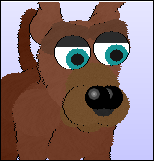
Balls: Ball Color
This is the second tool in the Balls set. Pretty self explanatory! :D I highlighted it in red.
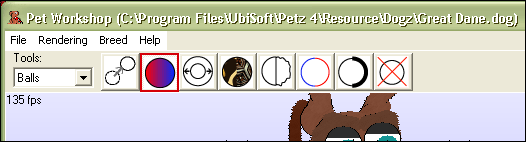
The "Tool Options" tab shows you what color you have selected currently. If you click on the box of color, PWS brings up its color chart and you can pick a new color simply by clicking on it.
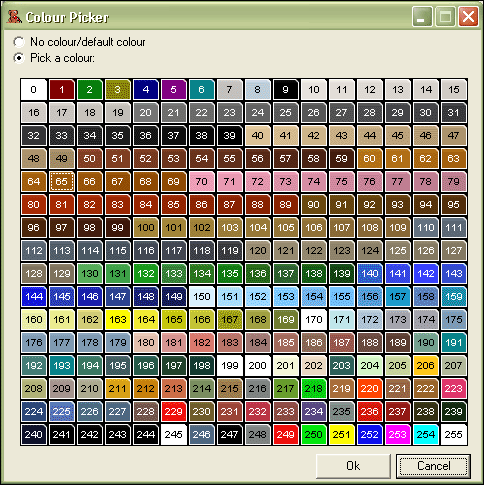
Remember not all colors on the PWS chart are accurate. Windows colors (8, 9, 229-243, 246, 247, 255) can change from computer to computer. A more accurate color chart is available here. Using the newest PetzA and checking the Unlock Palette option in Settings will fix most, but not all, Windows colors from changing.
Pick a color and click "Ok". I chose 65, for example.
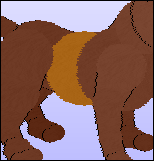
Then just click on the ball you want to color. Easy!
Balls: Ball Size
The third tool in the Balls set is Ball Size, another very easy one to use. It makes ballz bigger and smaller, by as many or as few integers at a time as you want. 5 sizes is the default setting, and generally that's a good amount.
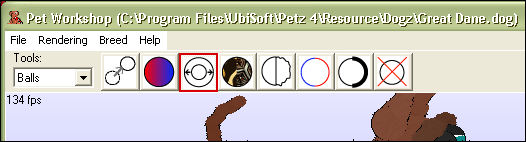
The "Tools Options" tab allows you to pick whether you are making the ball bigger (increasing) or smaller (decreasing), and by how much. Use the arrows to the right of the number to adjust the amount increased/decreased.
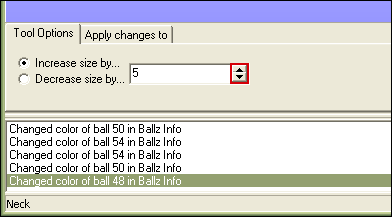
Click on a ball to adjust its size, and that's it!
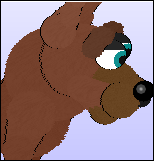
Balls: Ball Texture
Ball Texture will change the texture of whatever ball you click on. This is the fourth tool in the Balls set. This is great for changing in-game textures (the ones that naturally occur in Petz, like mottled5, hair3, etc.), but do not use PWS to add external (i.e. downloaded or created) textures to your file!
Always use LNZ Pro when adding external textures to your file. Pet Workshop's default path is incorrect for external textures, it can cause odd indexing leading to color issues, and other random problems we aren't sure the reason for lol. Most of these issues are fixed by adding the texture in LNZ Pro, then using PWS only to apply it to ballz.
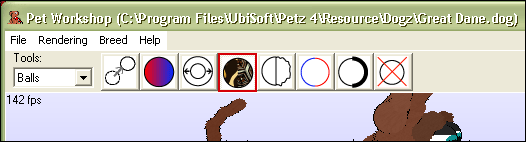
The bottom has a drop-down menu that contains all textures currently in the breedfile.
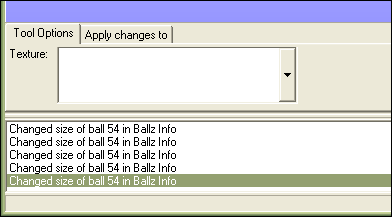
You can select one of these textures, then click a ball to change it to that texture. Just like changing the ball color.
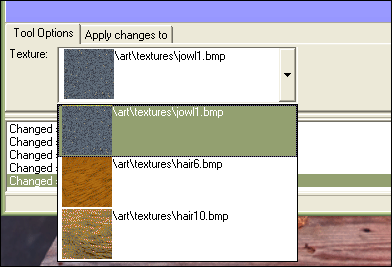
You can also pick completely different textures, by looking at the right side of PWS (with all the tabs) and choosing the "Textures" tab.
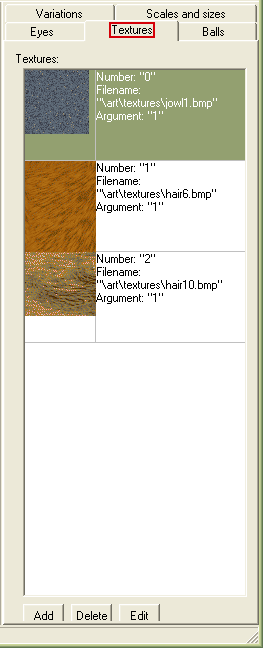
On the bottom you'll see "Add," "Delete," and "Edit" buttons. These let you add a texture to the list, delete the selected texture, or edit the selected texture respectively. Normally you'll just need to change the textures, so click on the "Edit" button. You'll get this screen.
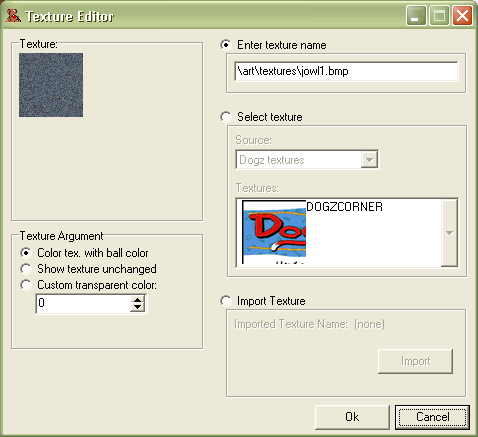
- Texture: shows the current texture
- Texture Argument is the argument, or tranparency, of the texture.
- "Color tex. with ball color" means just that, the texture is transparent over top of the ball color (argument "1").
- "Show texture unchanged" is just that as well, the texture will show up as it appears in the picture (argument "0").
- "Custom transparent color" lets you pick a color within the texture to make transparent and let the ball color beneath show through. For example when hair6 is set to argument 65 for a brindle effect, you are making the orange color (65) in the texture transparent.
- A wonderfully in depth list of textures and their arguments is here, made by Queenie @ Phantasmagoria. Experiment, textures are lots of fun!
- Enter texture name can be used if you know the texture you want off hand, just change "jowl1.bmp" (or whatever) to "texture.bmp" Remember, don't use this to add external textures! Always do that in LNZPro.
- Select texture let's you visually select a Dogz, Catz, Petz, or Breedfile texture. Those menus are a little off, but any Petz install you get fro mthe community is likely going to have both Catz and Dogz. Breedfile you won't ever use, it's just the breedfile's AC picture lol.
- Import texture you will never use! Like I said, this doesn't work well when you want to send .pet files to people for adoption. Use LNZPro!
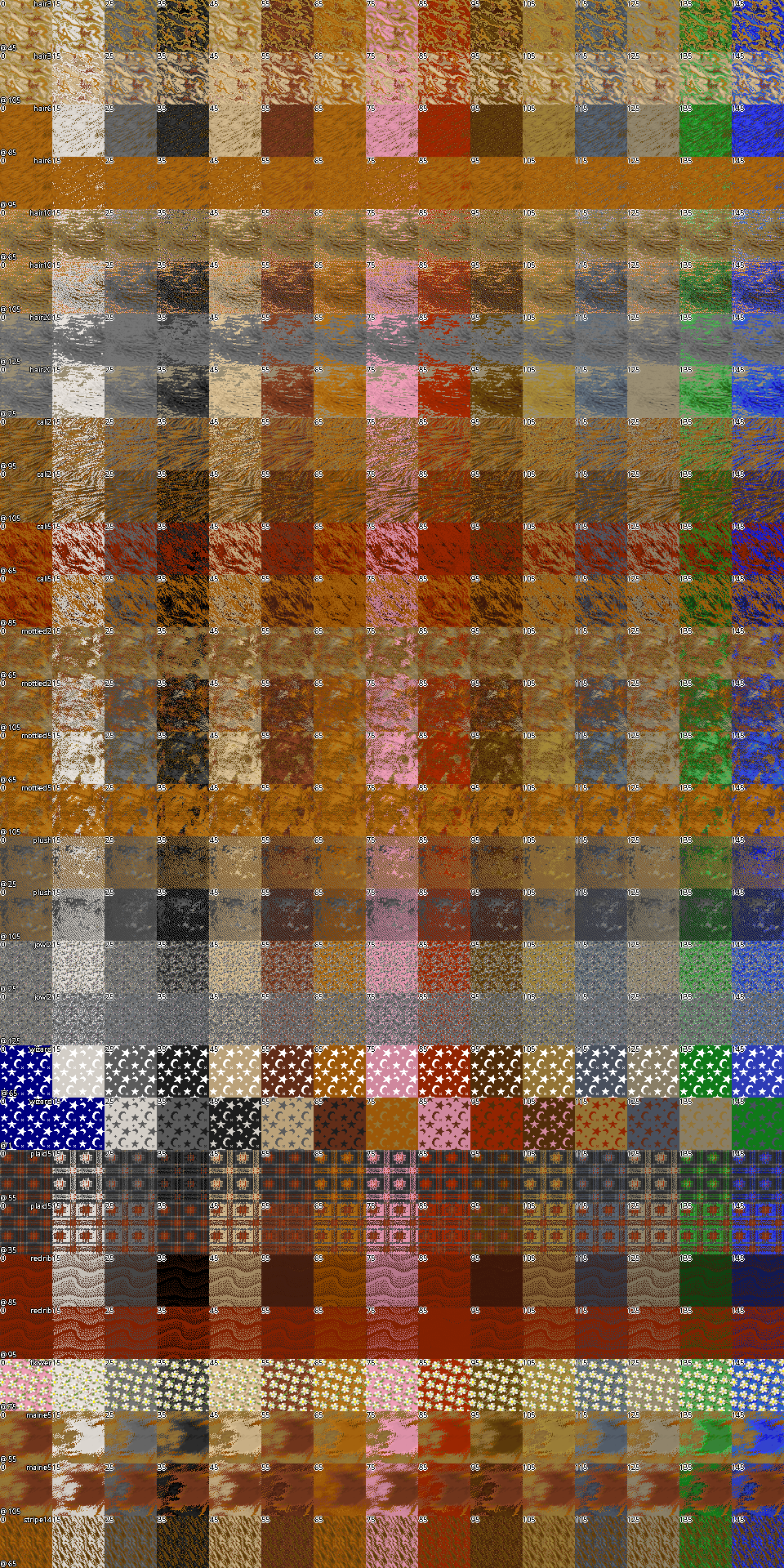
Click the "Ok" button when you're finished editing, and use the tool normally to apply your new textures.
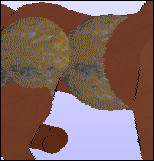
Here I used plush at argument 0, or "unchanged," on the belly and hip.
Balls: Outline Fuzziness
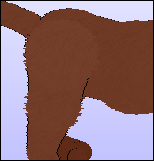
Outline Fuzziness is the amount of "fuzz" on a ball, and the fifth tool in the Balls set.
The "Tool Options" tab lets you change the fuzziness up or down. 0 is totally smooth, and 4 is about as high as you want to go. Anything higher than 4 starts to look less fuzzy and more like static lol. But maybe you want that! You can see a little preview right underneath the fuzz amount in the "Sample". 2 is the default setting.
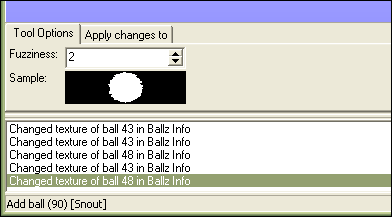
Pick your fuzziness level and click the ball you want to change, just like the other tools.
Balls: Outline Color
The sixth tool in the Balls set is Outline Color, and it changes the color of a ball's outline. :P This is especially useful for certain breeds who have precolored outlines, like the lab and scottie, that match the AC dogs' coats. The color defaults to the last one you used with the Ball Color tool.
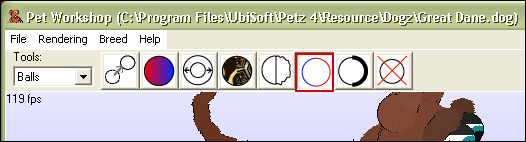
The "Tool Options" tab at the bottom works the same way Ball Color does. Click the color box to pull up the color chart, and select a new outline color.
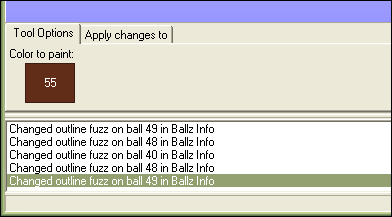
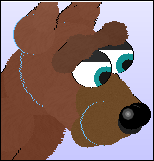
Click on the ball whose outline you want to change. I picked 155 and clicked the head, r jowl, and r ear 3 ballz.
Balls: Outline Thickness
Outline Thickness is the seventh tool in the Balls set. It changes the thickness of a ball's outlines, and whether it's on the right side, left side, or both sides. It can also remove outlines if you pick the "No outline" option.
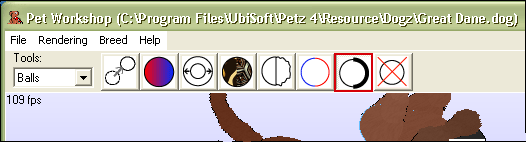
The "Tool Options" lets you pick no outline, outline on the right only, left only, or both sides of the ball, and lets you make a ball look like a nose (lol). You probably won't use the "Draw as a nose" option a whole lot, but it can have its applications.
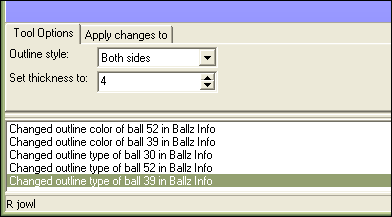
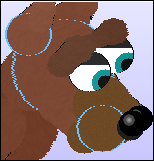
Just click on the ball to change the outline type and/or thickness. I selected "Both sides," set my thickness to 4, and clicked head, r jowl, and r ear 3 ballz (same ones I used in the above example).
Balls: Delete Ball
The last tool in the Balls set is Delete Ball. It can delete a ball (where possible, i.e. addballz) from the breedfile, or add the ball number to the [Omissions] list and omit the ball. Generally I chose to omit balls, that way you can always bring them back later by just removing the ball number from the [Omissions] list.
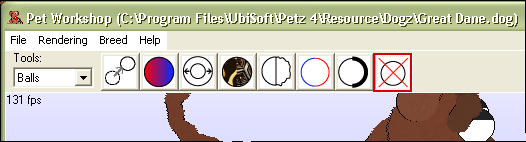
"Tool Options" just lets you pick between omitting balls and deleting them, but you usually only ever want to omit them.
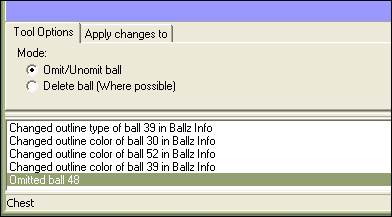
Click the ball you want to omit. The belly, for example
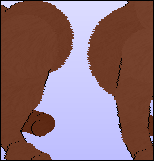
This is really useful when doing a lot of paintballz, since some balls (like the belly and chest) cover each other and make it hard to line up markings sometimes. With this tool, you can just omit the ball blocking your view and work on the other ball.
To unomit ballz, you need to go to the Balls tab from the tab menu on the right. Omitted balls will be highlighted in red. Click the ball you want to restore, then hit the "apply tool to balls" button at the bottom.

Lines: Line Color
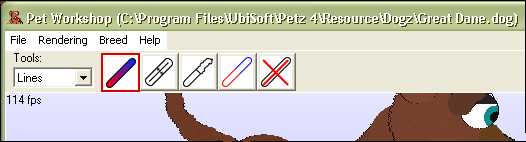
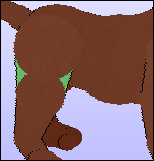
Line Color is the first tool of the Lines set. It will change the color of a line, but be aware that doing this will remove the texture of the line. A line takes the color of it's "start ball," so a better way to change a line's color is to do so in LNZ Pro by switching the numbers in the "start ball" and "end ball" columns. I almost never change line colors in PWS, so this explanation is brief. This tool works just like Ball Color.
Pick "Lines" from the drop-down menu and then click on the icon that I highlighted below.
The "Tool Options" tab at the bottom of PWS allows you to click the box of color to pull up the color chart and pick a new color.
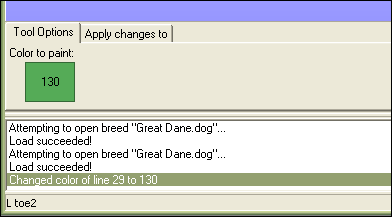
Click the line you want to change the color of.
Lines: Line Size
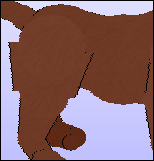
The second tool in the Lines set, Line size with make a line bigger or smaller. This is especially useful for puff tails, and any area where you want a smoother transition between ballz.
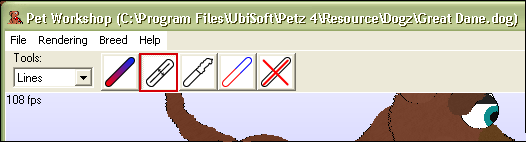
"Tool Options" lets you set the amount you want to increase or decrease the size of the line by. 5 is the default and is usually a good amount.
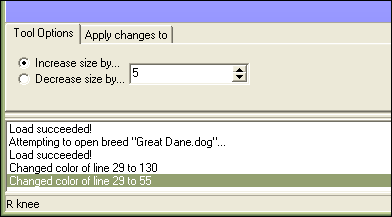
Click on the line you want to make bigger or smaller.
Lines: Outline Fuziness
Outline Fuzziness is the third tool in the Lines set, and changes how fuzzy a line is. Many people forget to add fuzz to linez, but it looks nice especially on puff tails and on hexes that are going for an all-over fluffy look. This does not affect the texture of the line like Line Color does.
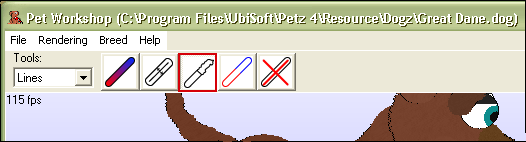
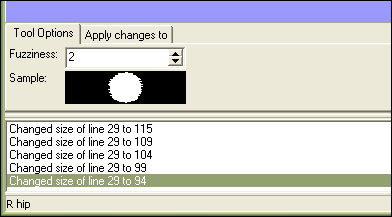
The "Tool Options" tab lets you change the fuzziness up or down. 0 is totally smooth, and 4 is usually as high as I go for normal-looking fuzz. You can see a preview right underneath the fuzz amount in the "Sample". 2 is the default setting.
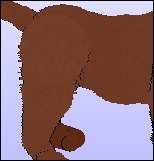
Chose an amount of fuzz and click on the line you want to change.
Lines: Outline Color
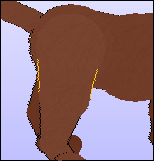
The fourth tool in the Lines set is Outline Color, and it colors a line's outline just like the one for ballz. It won't mess with the texture like Line Color will. I find this useful when making addball additions, because often times you'll want to give the lines an outline as opposed to the addballz. It helps the addition look smoother, instead of just a bunch of balls stuck together. If you want a line to not have an outline, it's best to set the outline in LNZ Pro to -1. You can also set different left and right outline colors there.
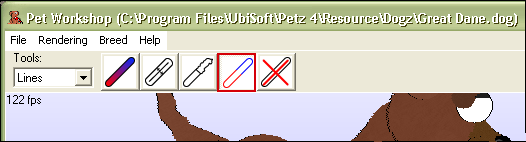
"Tool Options" at the bottom of PWS lets you pick a color for the outline by clicking the box of color to pull up the color chart. Click on a color to select it.
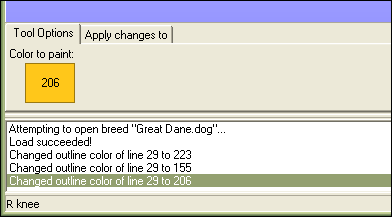
Click on the line you want to change.
Lines: Delete Line
Delete Line is the last tool in the Lines set, and it simply deletes linez. Remember, there is no "Undo" action in PWS so delete with care. You can add linez back by right-clicking a ball, clicking "Add line," then right-click the ball you want to connect to and click "Connect line".
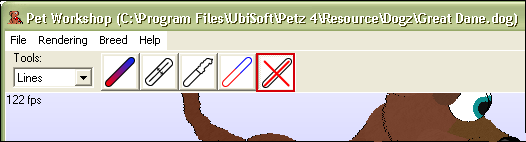
There actually are no "Tool Options" for this tool, so just make sure your changes are still being applied to "Base Data". This doesn't matter for linez but it's always good to check hehe. :D
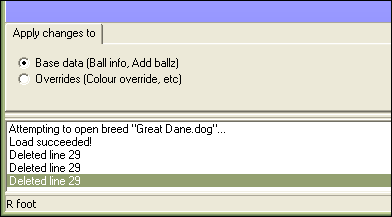
Click on a line to delete it.
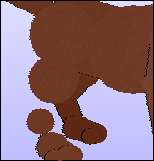
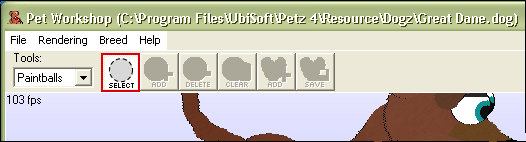
Paintballs: Select Ball to Edit
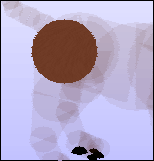
The very first tool in the Paintballs set is just your standard selection tool. It will make all other ballz semi-transparent so you can see which one you have selected. It won't make other paintballs transparent, though, so sometimes you'll have to temporarily omit ballz in order to see what you're doing. You must first select a ball in order to use any other tools in the Paintballs set.
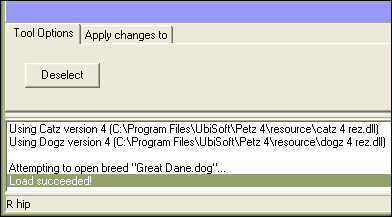
The "Tool Options" at the bottom just lets you "Deselect" the ball, which will make the other balls opaque again.
Click on a ball to select it.
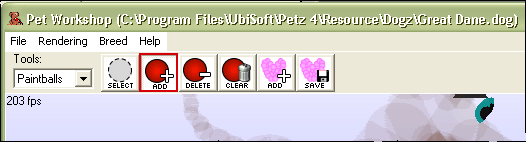
Paintballs: Add Paintball
Adding spots, or paintballs, is very simple. After first selecting which ball to work on with the selection tool explained above, use the second tool in the set to add paintballs.
"Tool Options" at the bottom of the screen has a few different options you can apply to the paintball.
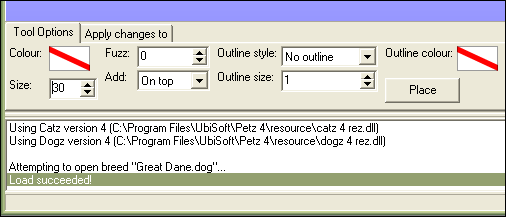
- Color pulls up the color chart and lets you select what color you'd like the spot to be.
- Size determines how big the spot is in a percentage. So the default, 30, is a spot that covers 30% of the ball. This is why spot sizes vary from breed to breed and ball to ball.
- Fuzz gives the spot rough edges, or fuzziness. 4 is usually as high as you want to go.
- Add tells PWS how you want to layer the spot. The drop down menu lets you pick between "on Top" or "Underneath". "On Top" places the spot on top of all other spots, while "Underneath" places it beneath all other spots.
- Outline Style will give your spot an outline, either a complete one, left side only, right side only, or none (default). This will untexture your paintballs and produce unexpected results, so personally I like to layer spots to give them an "outline" rather than add actual outlines.
- Outline Size adjusts the thickness of the outline, up or down.
- Outline Color pulls up the color chart again, and lets you pick an outline color.
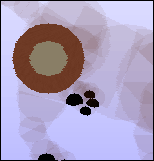
Once you've set up your option as you like, click out in the space surrounding the pet and drag to decide where you'd like to place the spot. Click the Place button when you like the placement. You can add a spot anywhere on any ball, overlap them, whatever. You just can't add spots to linez.
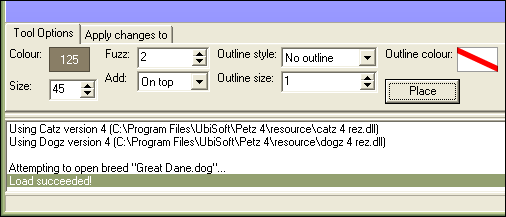
The spot will be placed wherever you see the faded spot.
Paintballs: Delete Paintball
Pretty self explanatory, the third tool in the Paintballs set deletes paintballs one at a time.
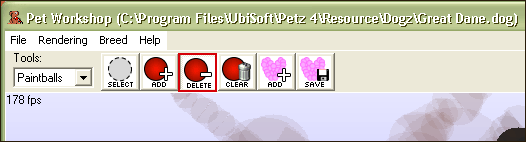
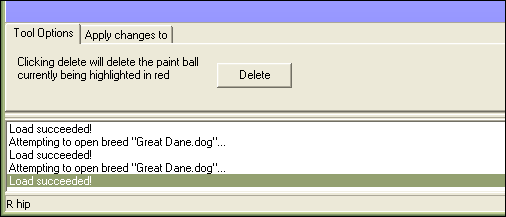
"Tool Options" at the bottom just contains the actual "Delete" button.
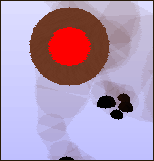
You'll see a paintball is highlighted in bright red when it is selected for deletion. To change the paintball, just click and hold in the empty space around the pet model, and drag. You'll see the red highlight will jump around to different spots depending on the angle.
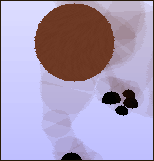
Once you have the spot you want to delete selected, just press "Delete". Remember there is no "Undo" action in PWS, so double check.
Paintballs: Clear Paintballs
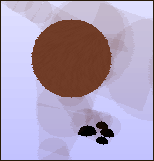
Clear Paintballs works just like Delete, only it deletes every single spot on the selected ball.
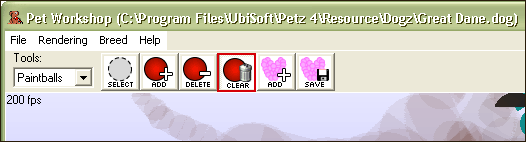
"Tool Options" only contains the "Clear" button.
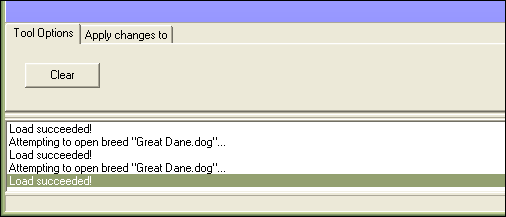
Select the ball you want to clear.
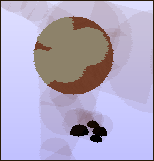
Click "Clear," it will ask if you're sure, and all spots will be deleted. Remember there's no "Undo" action in PWS, so double check.
Paintballs: Add Tattoo
The "Add Tattoo" tool allows you to add any tattoos you've saved yourself or downloaded from others. Tattoos are located in Program Files\Sherlock Software\Pet Workshop\Tattoos.
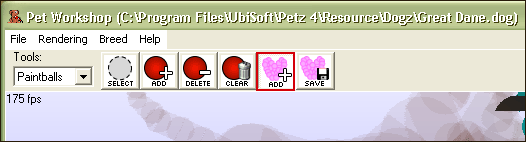
You can make adjustments to the tattoo with the "Tool Options," or add it as-is.
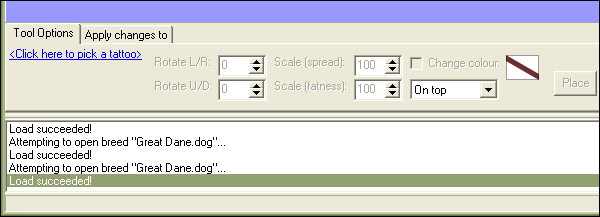
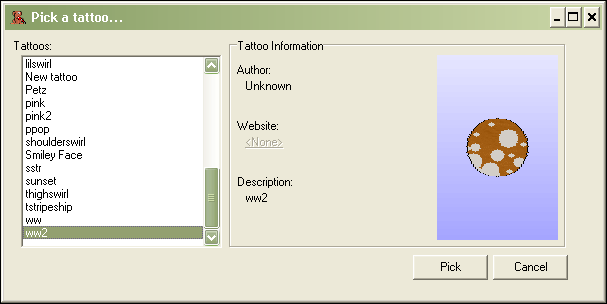
The blue link lets you pick a tattoo from your list of saved ones. You have to click in the list to scroll, then pick the tatto you want and click "pick".
- Now you can use the "Tool Options";
- Rotate L/R moves the tattoo left and right as you adjust the numbers.
- Rotate U/D moves the tattoo up and down with the numbers.
- Scale (spread) moves the individual paintballs in the tattoo farther apart.
- Scale (size) adjusts the size of the individual paintballs in the tattoo.
- Checking Change Color will pull up the color chart and let you change the color of the entire tattoo. It will not respect multiple colors in the same tattoo.
- The drop down menu underneath that lets you pick whether the tattoo is placed on top of other paintballs, or beneath them.
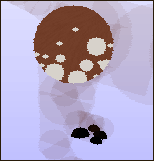
Click "Place" when you like the placement of your tattoo. The tattoo appears where you see the faded spots. You cannot click and drag to move the tattoo like paintballs.
Paintballs: Save Tattoo
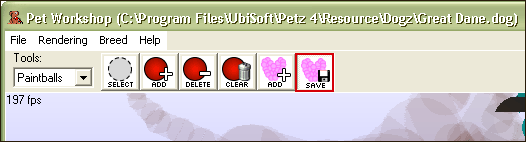
The sixth tool in the Paintballs set will save all spots on the selected ball as a tattoo. These tools save time if you need to replicate complex spot patterns or design, or if you want certain markings to be exactly the same on multiple balls.
It will save ALL the paintballs on your selected ball.
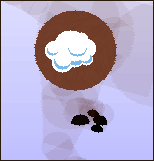
Say I wanted to save this cloud spot pattern to use on other hexes;
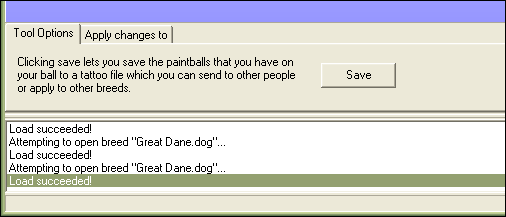
In "Tool Options" at the bottom, click "Save".
You can save some information on the tattoo if you like. This is useful if you plan to give the tattoo to others, or put it on your site for download. You do not have to fill in the first two fields, but I usually fill in the description if only for myself.
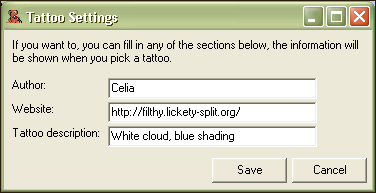
You can save it anywhere, but PWS's "Tattoo" folder (Program Files\Sherlock Software\Pet Workshop\Tattoos) is where PWS pulls it's list from for the "Add Tattoo" tool. So 99% of the time you want to save it there.
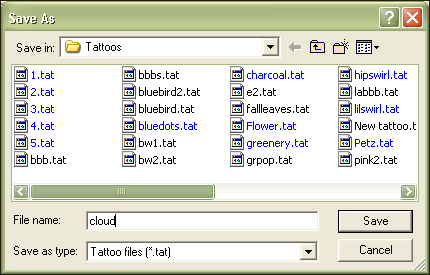
Click "Save" and you're done!
Log in to post a comment.
Comments
No comments yet. Be the first to say something!