
Recolouring Textures
Required Tools
- Libresprite
- IrfanView
- Petz palette (see attachments)
Step 1)
Make a copy of the texture you want to recolour. Rename it to whatever you want. In this example, we'll call it "RecoloredTexture".
Step 2)
Open RecolouredTexture in Libresprite.
Step 2.5 a)
If the palette on the left hand side does not match the Petz palette, it needs to be indexed. We will do this in IrfanView.
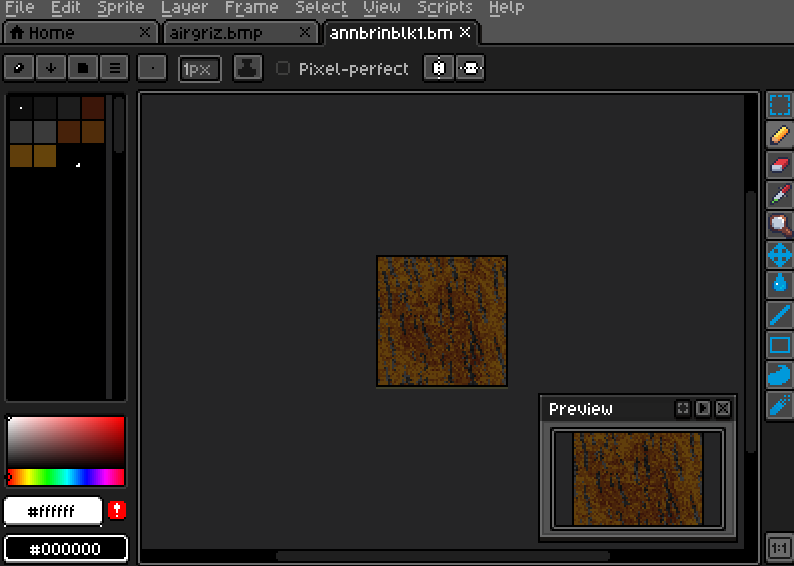
Step 2.5 b)
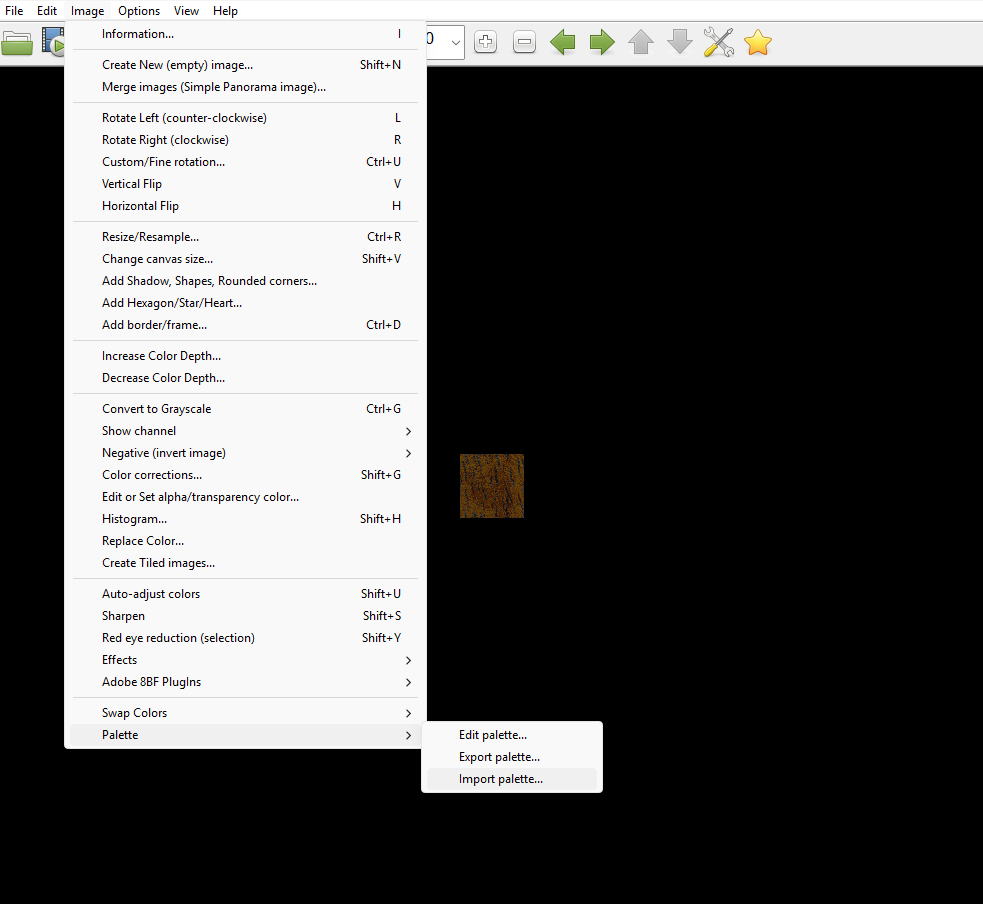
Open RecolouredTexture in IrfanView. Go to Image -> Palette -> Import Palette. Import the Petz Palette. Save.
Step 2.5 c)
Reopen RecolouredTexture in Libresprite.
Step 3)
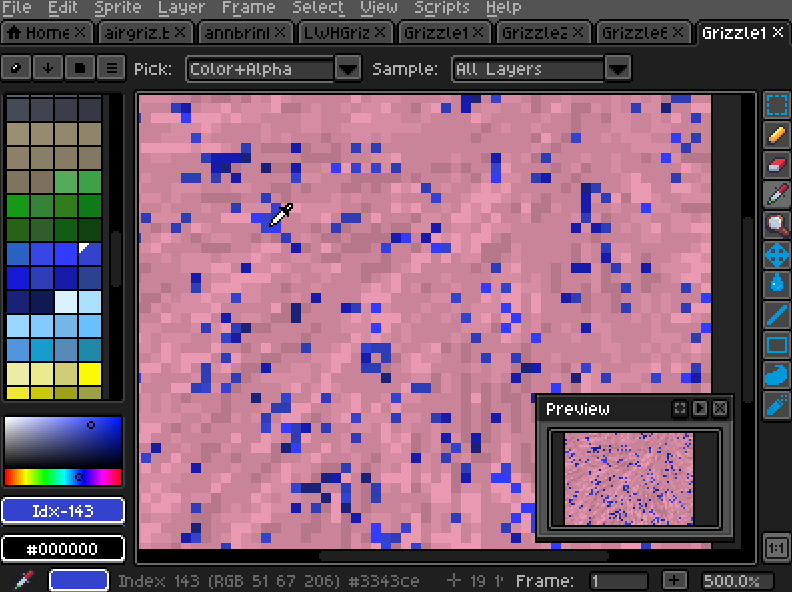
Select the eyedropper tool (keyboard shortcut: I). Click on a pixel for the colour you want to replace. This will select it on the palette, highlighting it with a white icon.
In this example, it is the 4th blue colour (144).
Step 4)
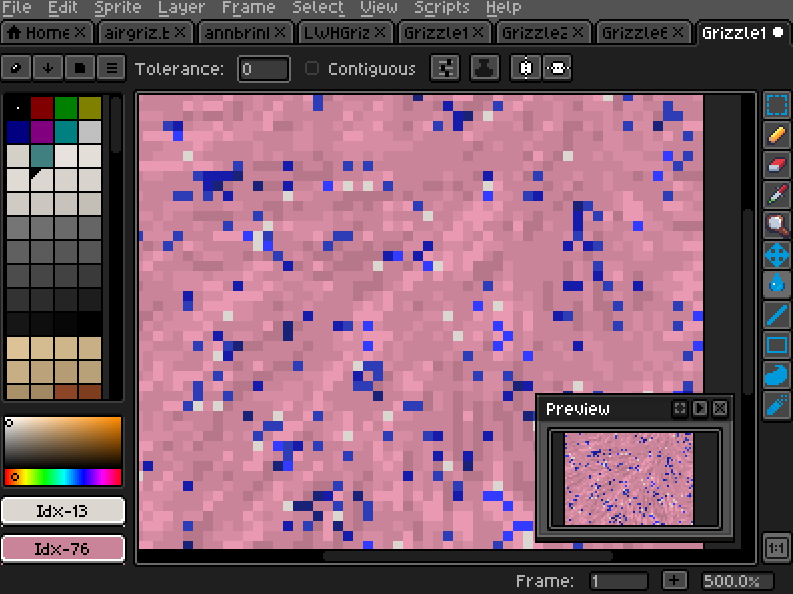
Select the corresponding colour for the colour you want to replace it with - e.g. if you wanted to turn the colour white, you would use the 4th white colour (14). Select the fill tool (keyboard shortcut: G) and untick "contiguous" on the top bar . Fill the pixel you used the eyedropper on. This will fill all pixels of the colour.
Step 5)
Repeat until you've recoloured everything you wanted to change. Save.
Step 6)
Test in game. Your texture should now be recoloured!
Log in to post a comment.
Comments
No comments yet. Be the first to say something!